Inspect / Rainmeter skin
Simplistic Clock Rainmeter skin
A focused clock by pixeltoast, listed with 24-hour time, a day/month/year date and black or white color options.
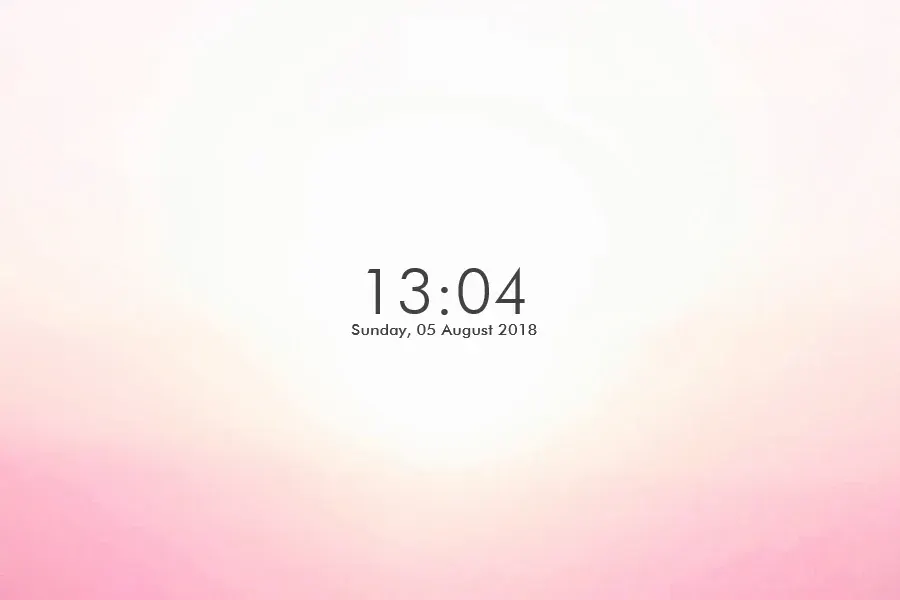
Simplistic Clock by pixeltoast puts the system time, current day and date on the desktop through Rainmeter. The VisualSkins listing describes a digital 24-hour clock, a date in dd/mm/yyyy format and two color choices: black and white.
It is a useful choice if those formats already match how you read the time. The defined format is also its main limitation: someone who needs a documented 12-hour option, month-first date or a broad color palette should not assume those controls are available.
A clock with a specific format
The skin reads the time from your system. If it displays the wrong hour or date, check Windows time and timezone settings before trying to fix the skin's appearance. The listed date order is day, month, then year; a date such as the first day of a month should be read in that order.
Unlike Mond, whose documented suite includes weather and music components, Simplistic Clock is focused on time and date. It is a sensible starting point for a desktop where you do not want to configure external data services. For another clock with light and dark versions, compare Elegant Clock.
Install and position it
You need Rainmeter on Windows before opening the RMSKIN package. Follow the full installation guide if this is your first skin.
- Download
simplistic-clock.rmskinfrom the link below and open it with Rainmeter's Skin Installer. - Review the package contents and keep backups enabled when replacing existing skin files.
- Install the package. If necessary, open Rainmeter's Manage window, locate the clock configuration and click Load.
- Use the black or white option provided by the package and place the clock where the entire date line contrasts with your wallpaper.
Check the clock against your Windows time after loading it. Then move it away from desktop shortcuts so the day and date have enough room. If you plan to edit configuration files, copy the skin folder first; see the customization guide for refreshing edits and saving your layout.
Documentation note: the time format, date order and two colors are stated by VisualSkins, which distributes the linked file and credits pixeltoast. We have not installed this package or verified settings beyond that description.
Common questions
Does it use 12-hour time?
The listing specifies 24-hour time. It does not document a switch to a 12-hour display, so do not choose it on the assumption that such a switch is included.
Can I choose any text color?
The documented choices are black and white. Further color changes would need investigation of the installed configuration rather than relying on a promised settings panel.
Download and sources
Download Simplistic Clock (.rmskin)
Read the VisualSkins listing and pixeltoast's original artwork page, or browse the clock category.