Inspect / Rainmeter skin
Elegant Clock Rainmeter skin
A large time-and-date display by twistlemon, with dark and white clock versions and fonts listed in the creator's package description.
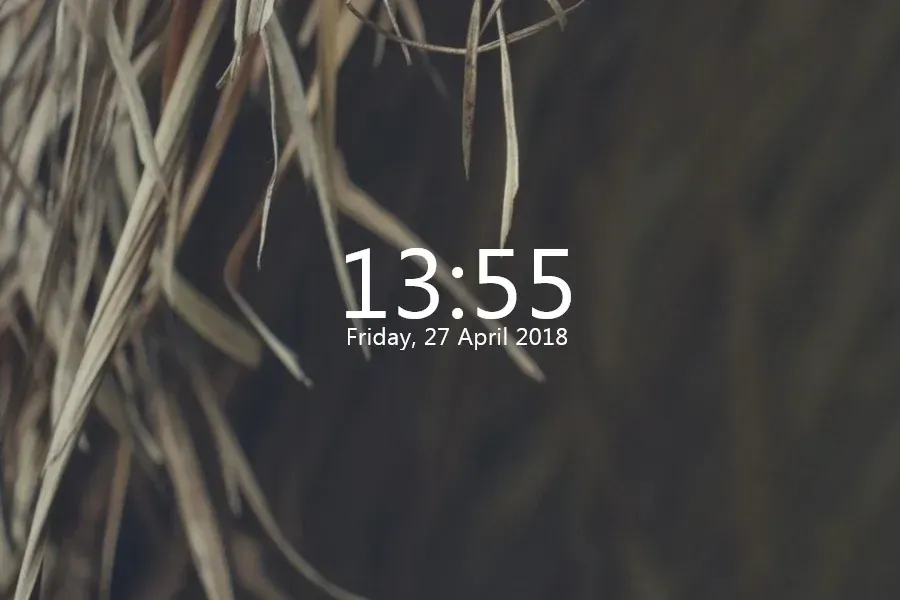
Elegant Clock is a Rainmeter time-and-date skin by twistlemon. A large clock sits alongside the day and date, making it useful when you want to read the time across the desktop without adding weather, music controls or a system-monitoring panel.
The creator describes a package containing dark and white clock versions plus fonts. That gives you a practical choice for contrasting with your wallpaper: use the light version against a dark area, or the dark version against a light one. VisualSkins provides the download linked here; it is the distribution source, not the skin's author.
Where it fits
Choose Elegant Clock if the clock itself should be a prominent part of your layout. Set aside a clear patch of wallpaper for the time, day and date rather than placing them over a busy image. A large display is less useful if its text blends into the background.
For a clock with an explicitly documented 24-hour display and numeric date, compare Simplistic Clock. If you want weather and music alongside the clock, Mond has a broader set of components, with more configuration to consider.
Install the package
Elegant Clock requires Rainmeter on Windows. The download is a skin package, not the Rainmeter application itself.
- Install Rainmeter first, then download
elegant-clock.rmskinfrom the button below. - Open the file in Rainmeter's Skin Installer and review the included items before installing. Preserve backups if replacing an existing copy.
- If the clock does not load automatically, find its configuration in Rainmeter's Manage window and select Load.
- Choose the dark or white version available in the installed package, then position it against a contrasting part of your wallpaper.
The installation guide covers the installer and manual loading. If you already have a desktop arrangement, save a named layout before applying any package-supplied layout.
Setup notes
The creator lists fonts among the package contents. If your result looks different, review the included font instructions before changing text sizes or editing the configuration. For edits, back up the skin folder first and refresh the skin after saving; the customization guide explains that workflow.
Documentation note: the clock, day and date come from the VisualSkins description; the dark and white versions and fonts come from twistlemon's page. We have not installed the package or verified additional format settings.
Common questions
Can I use it on a light wallpaper?
The creator includes a dark clock version. Try it over a light, uncluttered area so all of the date text remains readable.
Is this a complete desktop theme?
The documented package focuses on the clock and fonts. Do not expect the wallpaper or unrelated widgets in a sample desktop to be included.
Download and attribution
Download Elegant Clock (.rmskin)
Sources: VisualSkins listing and Elegant Clock by twistlemon. Find alternatives in clock skins.