Inspect / Rainmeter skin
Mond Rainmeter skin
A coordinated clock, date, weather, music and Recycle Bin suite, with creator-documented settings and important limits on older integrations.
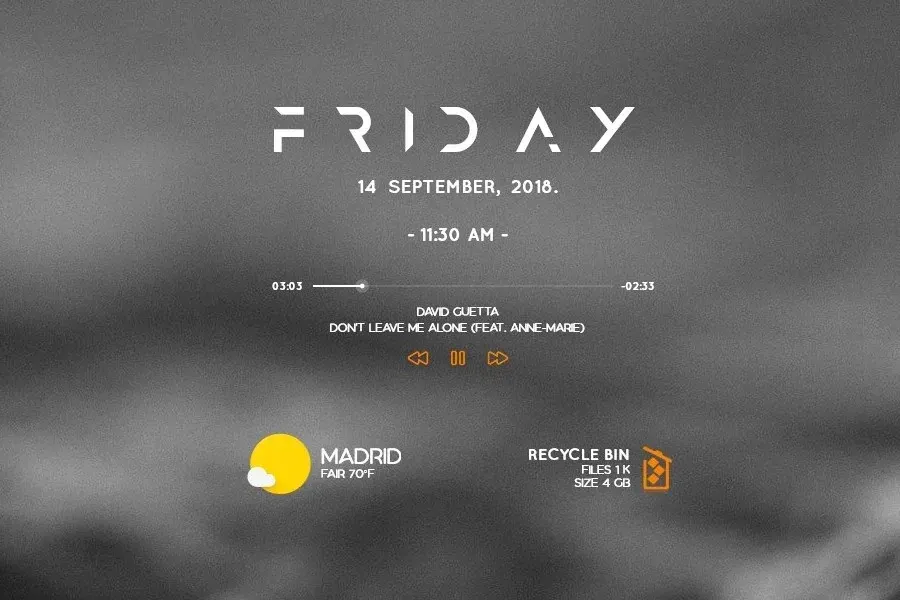
Mond brings a clock, date, weather display, music controls and a Recycle Bin counter into one Rainmeter suite. It suits a desktop where you want several related widgets rather than a clock alone. You can start with the time and date, then load the other components as you configure them.
What to expect from the suite
The VisualSkins listing credits HipHopium; the linked creator artwork is now under ApexXx-SenSei. VisualSkins is the distribution source for the download below, not the creator. The listing describes the Recycle Bin widget as a count of deleted files, while the weather and music components bring additional setup dependencies.
Mond makes more sense than a single-purpose clock if you want a coordinated collection of widgets. If you only need readable time and date, Simplistic Clock is a more focused starting point.
Install and arrange Mond
You need Rainmeter installed on Windows. For the full procedure, see the Rainmeter skin installation guide.
- Download
mond.rmskinusing the button below and open it in Rainmeter's Skin Installer. - Review the package contents and any layout options. Keep backups enabled if replacing an existing skin.
- Install, then open Rainmeter's Manage window and load the Mond configurations you want if they do not appear automatically.
- According to the creator's instructions, right-click the weather skin and use Custom skin actions to reach settings. Adjust the location, font color and time format there.
The creator documents mouse-wheel resizing while the pointer is over a skin: scroll up to enlarge it or down to reduce it. Leave room around the clock before sizing the other widgets. Save your arrangement using the customization and layout guide.
Weather and music need separate attention
The creator specifies a foo_cad plugin for Foobar2000 and enabling MusicBee's CD Art Display plugin. The Spotify notes describe an older desktop integration and discontinued plugin development; they do not establish compatibility with today's Spotify desktop app or web player. Weather also depends on its provider, so a correct location setting alone does not guarantee a working feed.
Documentation note: these features and settings come from the listing and creator's instructions. We have not installed this package or verified its current weather and music integrations.
Questions before downloading
Does Mond include the wallpaper?
The creator credits a separate wallpaper source. Do not assume the background shown with Mond is part of the RMSKIN package.
Should I expect Spotify to work immediately?
No. Treat the original Spotify instructions as historical compatibility information, not a current support promise. Configure the clock first and check music support separately.
Download and sources
Read the distribution listing and creator's Mond page for source context, or browse more clock skins.