Inspect / Rainmeter skin
Minimal Shutdown Rainmeter skin
Desktop power and session controls by saifulkader, with six listed actions and four colors. Save your work and review commands before clicking.
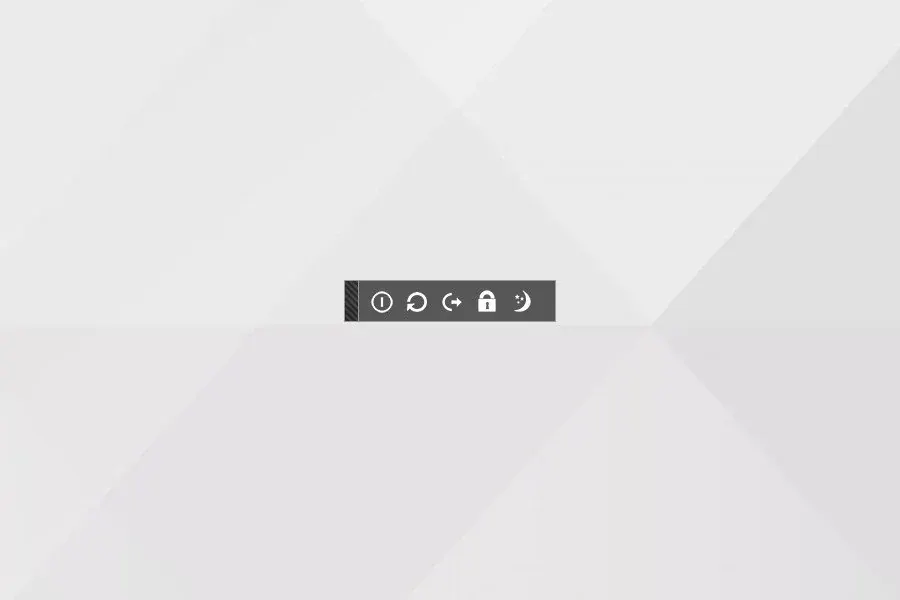
Minimal Shutdown by saifulkader puts Windows session and power actions on the desktop as a Rainmeter widget. The VisualSkins listing names six actions: hybrid shutdown, restart, shutdown, log off, lock and sleep. It also describes white, blue, red and black color choices.
This skin suits a desktop where you want visible power controls rather than opening the Start menu each time. The trade-off is that controls capable of ending your session sit beside ordinary desktop content. Placement matters more here than it does for a decorative clock.
Read this before clicking a control
Save your work first. The listing describes single-click actions. Until you have reviewed the installed configuration, assume an action can take effect immediately, without a confirmation prompt or a cancellation window. Do not click through the buttons just to identify them.
Keep shutdown, restart and log-off controls away from frequently used shortcuts and places where you drag files. Hybrid shutdown and ordinary shutdown are listed separately, but the listing does not establish their exact command behavior on your machine. Windows power settings also matter when deciding whether sleep is appropriate for your setup.
Install without testing power actions
Minimal Shutdown requires Rainmeter on Windows. Use the installation guide for package and backup details.
- Download
minimal-shutdown.rmskinusing the button below. - Open it in Rainmeter's Skin Installer, review the contents and keep backups enabled if replacing an existing copy.
- Install the package. If it does not appear automatically, locate its configuration in Rainmeter's Manage window and select Load.
- Before using a power button, read any included instructions and inspect its configured action. Choose the supplied color option that stays visible against your wallpaper.
Use Rainmeter's Manage window to adjust positioning if dragging near the buttons would risk an accidental click. You can also unload the configuration there without activating a power control. See the customization guide before editing skin files.
How it differs from Power Controls
Power Controls is listed as a five-button strip with a cancel control and a ten-second waiting period. Minimal Shutdown instead documents six named actions and four colors. Neither description is a substitute for checking the configuration before using a command that may close your session.
Documentation note: the actions, single-click description and colors come from VisualSkins, which credits saifulkader. We have not installed this package, executed its commands or verified confirmation behavior.
Common questions
Is there a guaranteed cancel button?
The Minimal Shutdown listing does not document one. Treat its power actions as immediate until the installed configuration establishes otherwise.
Can I remove it without shutting down?
Use Rainmeter's Manage window to unload the skin rather than pressing a widget button. Unloading removes the Rainmeter display; it is not a shutdown command.
Download and attribution
Download Minimal Shutdown (.rmskin)
Sources: distribution listing and Minimal Shutdown by saifulkader. Browse more desktop controls.