Inspect / Native Windows theme family
Northern Lights Windows Theme
Northern Lights native wallpaper theme with 17 source-listed images, credited preview and reversible setup notes.
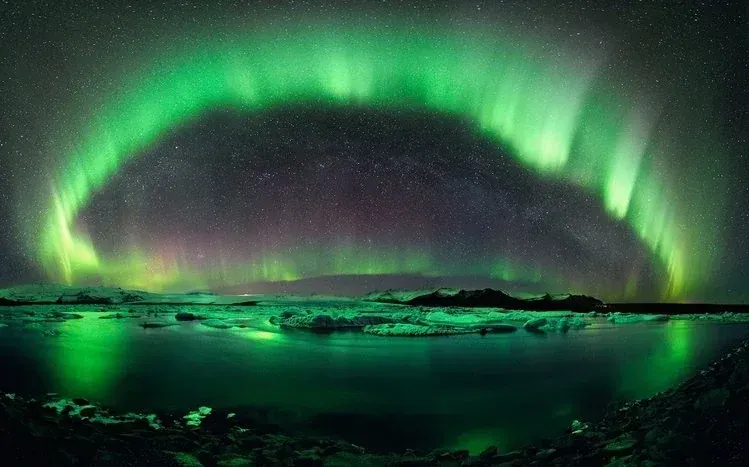
Aurora imagery puts luminous sky colors against darker landscapes. This collection is for the background layer: the moving appearance of an aurora in a photograph does not make the package an animated wallpaper.
View Northern Lights theme source and package options
What the source actually offers
The ThemePack.me listing identifies 17 HD wallpapers and a native .deskthemepack option. All images in this named collection belong on this single resource page; wallpaper choices and operating-system download variants are not separate themes here. The catalog identifies the subject as Northern Lights. Preview every image you intend to use rather than treating the first screenshot as the whole pack.
Before you apply it
Use the gallery to compare horizon placement and sky brightness: a clear upper corner can leave more space for desktop shortcuts. The listing advertises Windows 11, 10, 8/8.1 and 7, but DeskSpruce has not tested this package or established compatibility with your current Windows build. Use the format offered for your system on the source page. The observed modern package is .deskthemepack, not a Rainmeter .rmskin, a cursor scheme or a patched visual style.
Apply and restore
- Open Settings → Personalization → Themes and save your present theme with a recognizable name.
- Review the linked catalog page and select its native theme-package option for your system. The link above opens that source page; it is not a direct download.
- Inspect the downloaded file and open the native theme package, then select the theme in Personalization → Themes. Stop if the file instead asks you to run an unrelated installer or modify system security.
- Review Background settings and choose the image, slideshow interval and fit that suit your monitor. A gallery preview does not certify every monitor ratio or resolution.
- To undo the change, return to Personalization → Themes and select the theme you saved. Restore any separately changed background or color preference there.
See saving and restoring a Windows theme for the native-theme workflow. A saved personalization is not a full system backup.
Creator, preview and limits
Source: ThemePack.me — Northern Lights. The catalog does not identify all individual wallpaper creators in the observed listing. This is not evidence that ThemePack.me created or owns every image. The authentic preview is credited to that source; reuse permission is unverified and publication follows the site owner’s risk authorization, not a claimed open license. DeskSpruce does not mirror the package. No included sounds, icons, cursors, taskbar changes or application styling are established by the wallpaper count.
Related desktop options
- Windows contrast themes change accessibility colors instead of providing this photographic collection.
- Mond Rainmeter skin is a separate clock-and-widget layer, not another native theme; consider it only if desktop information is your goal.