Inspect / Native Windows theme family
Hydrangea Windows Theme
Hydrangea dedicates 15 wallpapers to the flowering shrub also known as Hortensia.
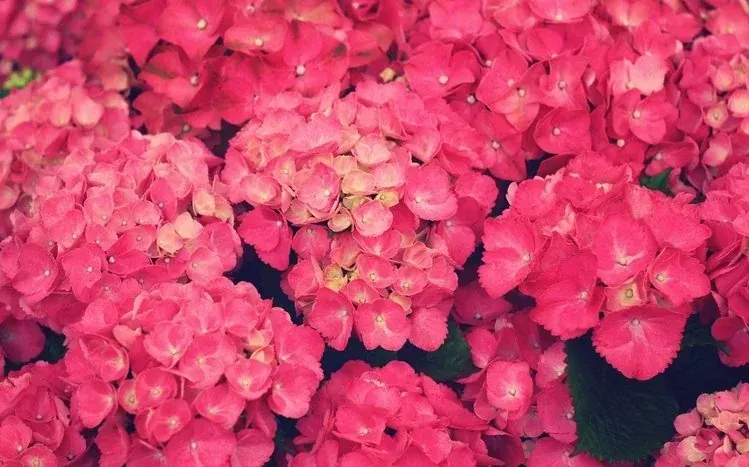
Hydrangea dedicates 15 wallpapers to the flowering shrub also known as Hortensia. The botanical subject is associated with a broad range of bloom colors, including red, white, blue, green, pink, and purple. This is a flower-specific option for users who prefer one plant as a recurring desktop subject rather than a mixed garden collection.
View Hydrangea theme source and package options
Collection and selection notes
ThemePack.me lists 15 HD wallpapers for Hydrangea; the observed gallery contains 15 preview images. Compare the hydrangea previews for flower color and the amount of detail behind your icons. Inspect each image individually rather than treating the plant's broad color range as a single consistent background palette. Use the source gallery to choose individual backgrounds; the count does not establish original image resolution, authorship or support for every display ratio.
Requirements and apply path
The source offers a native .deskthemepack package and advertises Windows 11, 10, 8/8.1 and 7. That is the catalog’s compatibility claim, not a DeskSpruce test of your current build. Use its package option for your system. This wallpaper collection is not a Rainmeter skin or an application-window visual style, and the listing does not establish included sounds, custom icons or cursor artwork.
- Save your current personalization in Settings → Personalization → Themes before replacing it.
- Open the source link above and review the listed native package. This CTA opens the catalog page, not a direct download; do not substitute an unrelated executable installer.
- Inspect and open the native theme package, then select it under Personalization → Themes. Review the chosen background, slideshow and fit on your own monitor.
- To restore your desktop, select your saved theme in the same settings screen; restore separately changed background or color preferences there.
Use the save-and-restore Windows theme guide for the native personalization workflow. No security disabling or system-file patching is needed for a native wallpaper-theme package.
Source and image credit
ThemePack.me’s Hydrangea listing is the source for the package options and authentic preview. Individual image creators are not established by the observed catalog listing; catalog attribution is not an assertion that it created or licensed every image. Preview permission is unverified; reuse follows the site owner’s risk authorization, not a claimed open license. DeskSpruce does not mirror or execute the package. Download availability, contents and current-build behavior have not been independently tested.
Related desktop choices
- Windows contrast themes change system accessibility colors, a different purpose from this subject-based wallpaper collection.
- Mond Rainmeter skin provides a separate desktop-widget layer; it is not another Windows wallpaper theme.